API cache
Pre-generate FrontStage API responses for events, event instances, seasons, people, and custom objects with rules on the Settings → Cache screen
The API cache generates FrontStage API responses ahead of time and serves them to your site. Each rule caches one API source. A request that no rule covers uses live data.
Open Settings → Cache. To see the screen, your role needs the View API Cache permission. To change it, your role also needs Manage API Cache. A role with view access sees the message You can view the cache but cannot change it. See Roles and permissions.
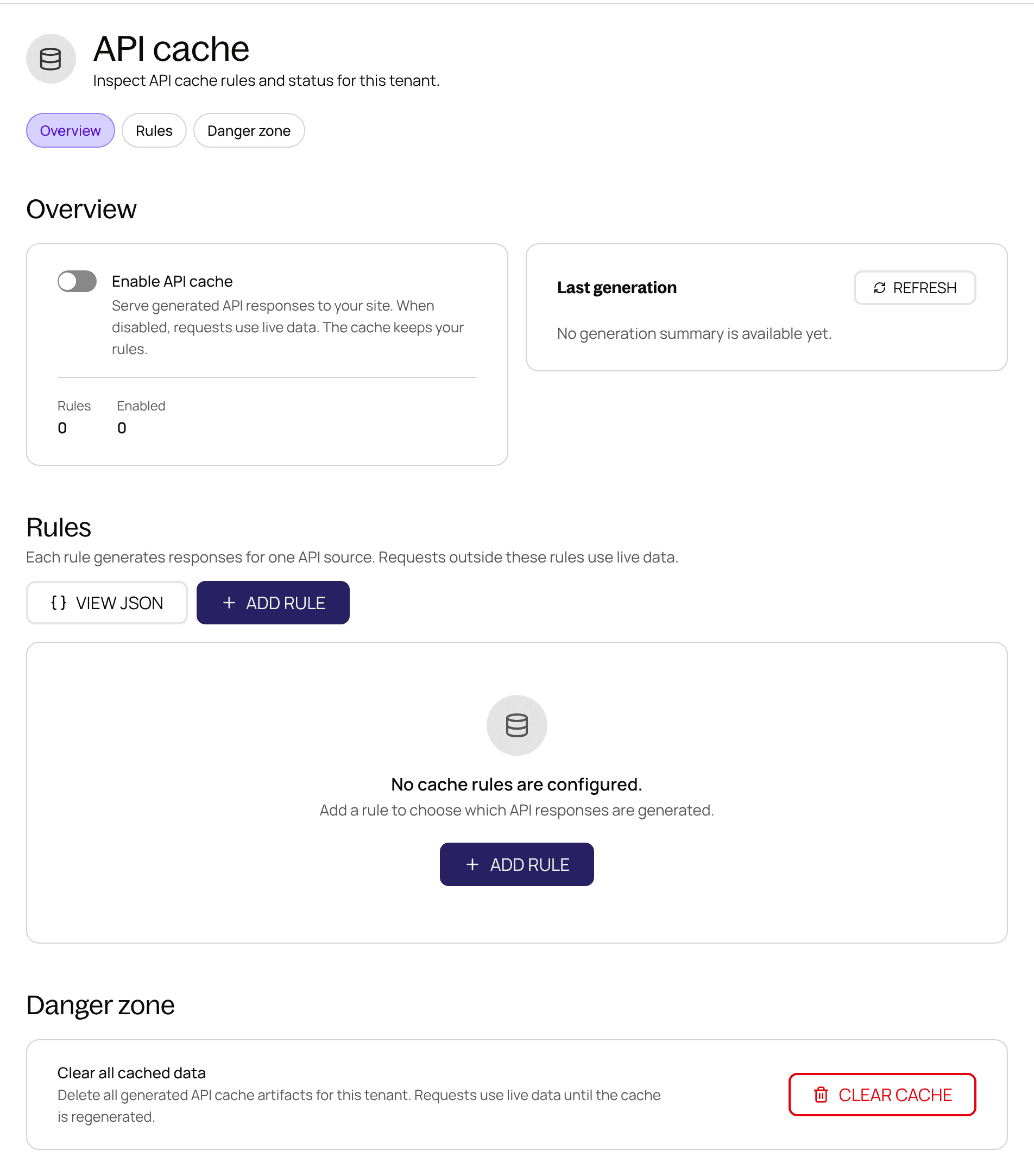
Turn the cache on or off
The Overview section has the Enable API cache switch. When the cache is off, every request uses live data. Basker keeps your rules while the cache is off.
The section also shows the number of Rules and how many are Enabled. Last generation shows the result of the latest generation, with the time it Finished, the number of Artifacts, and the Compressed size. Click Refresh to load the latest status.
A change to the switch or the rules shows an Unsaved changes bar. Click Save changes to save, or Discard to cancel.
Add a rule
Open the rule panel
In the Rules section, click Add rule.
Name the rule
Enter a Name. Basker makes the Rule ID from the name. You cannot change the ID after you save the rule.
Choose the source
Under Source, choose Event instances (/api/event-instances), Events (/api/events), Seasons (/api/seasons), People (/api/people), or Custom object (/api/custom-objects/{handle}). For a custom object, enter its handle.
Set the size
Set Items per page (1 to 1,000, default 50), Max pages (1 to 20, default 1), and Depth (0 to 5, default 1). The panel shows how many items the rule caches.
Choose the fields
Keep All fields, or choose Selected fields only and add the fields that your site uses, for example image.url. Fewer fields make smaller responses.
Add alternate URLs
To also cache other forms of the endpoint, click Add alternate URL. Enter the Path, and the Limit and Depth. The path can end in .json.
Apply and save
Click Apply, then click Save changes.
To stop a rule without deleting it, turn off Rule enabled. Basker keeps its settings.
Request a cached response
A request gets a cached response in one of two ways:
- By rule ID: add
shape=<Rule ID>to the endpoint, with an optionalpage. For example,/api/events?shape=whats-on&page=2./api/event-instancesalso acceptsseasonIdandshowPast=true. Any other parameter returns400. - By alternate URL: send exactly the query parameters of an alternate URL of the rule. A request with extra parameters uses live data and has the header
x-basker-api-cache-reason: alias-mismatch.
A page above Max pages uses live data and has the header x-basker-api-cache-reason: page-beyond-max.
Visitors get the public responses. Editors get preview responses on preview sites.
Read the rule list
The Cache rules table has a row for each rule:
- Rule: a switch that turns the rule on or off, the name, and the source. Click the name to edit the rule. Needs attention shows when the rule has an error.
- Cached content: the number of items, the page size, the depth, and the fields.
- Status: the state of the Public and the Preview responses, for example Ready, Queued, Generating, Failed, or Not generated. A rule that is off shows Disabled.
- Generated: when Basker last generated the responses.
- Actions: Regenerate and Clear cache for the rule.
Basker regenerates the responses after content changes. Large response. warns that a generated page is large. Select fewer fields to make it smaller.
Edit the configuration as JSON
Click View JSON to see the configuration of all rules. To change it, edit the JSON, click Validate, then click Apply to rules and Save changes. Copy JSON copies the configuration.
Clear the cache
In the Danger zone, click Clear cache to delete all generated responses. To generate them again at once, select Regenerate after clearing in the dialog. Then click Clear cache in the dialog. Until Basker generates the responses again, requests use live data.
The API cache is not the page cache of your site. Clearing it does not change how Basker refreshes your pages. See Content updates and caching.