Permission rules reference
Reference for the rules that make up a role, the actions in a rule, and the limits by field, tab, app, and custom object.
A role is a named list of Permission Rules. Each rule gives access to one area of the site. Basker adds the rules of a role together. For an introduction to roles, see Roles and permissions.
To open a role, go to Settings → Users & Permissions and find the Roles section. Click Add Role, or open a role in the list.
Role details
| Option | What it does |
|---|---|
| Icon | The icon that shows with the role. |
| Role Title | The name of the role. Required. |
| Role Description | A short note about the role. |
| Share with sites | The other sites in your group that can use this role. Shows only when your site is in a group of sites. |
| Apply Template | Fills the rules from a role template. Shows only when templates are available. A template replaces all the current rules. |
| Permission Rules | The list of rules. Click + Add rule to add one. |
| Delete Role | Deletes the role. Staff with this role lose its permissions. |
Click Create Role or Update Role to save.
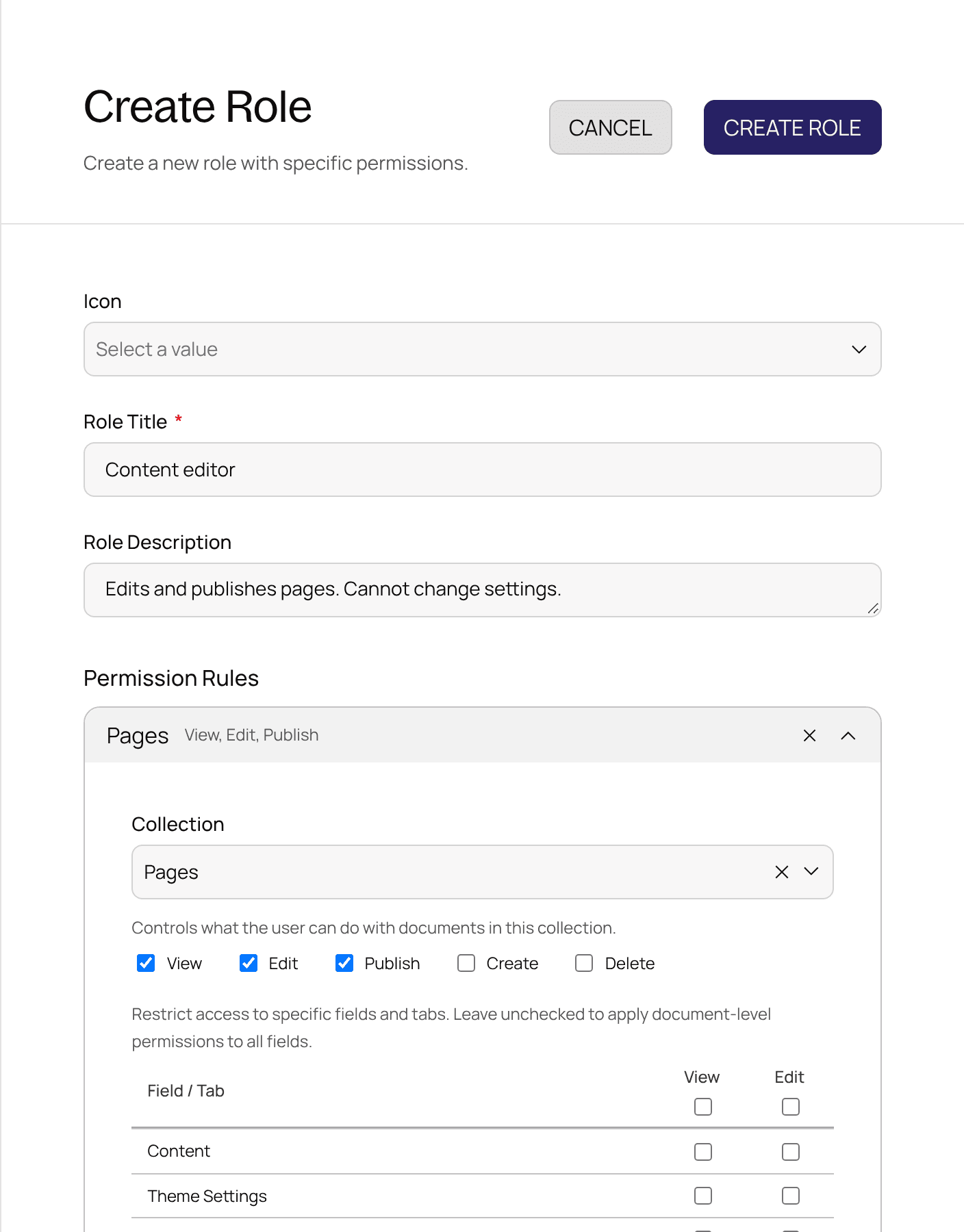
A new role with one rule for Pages, before you save it.
- 1Create Role — Saves the new role.
- 2Role Title — The name of the role. Required.
- 3Permission Rules — The rules of the role. Each rule covers one area of the site.
- 4Collection — The area that the rule covers.
- 5Field / Tab — Limits the rule to specific tabs and fields.
A role that another site shares with your site opens as View Shared Role. You can see its rules but you cannot change them.
Rule types
The Collection option of a rule sets the area that the rule covers.
A new rule starts as All Permissions. Choose the Collection before you save the role.
| Collection | What the rule gives |
|---|---|
| All Permissions | Full access. This includes the configuration of each app and each custom object. To limit access, remove this rule and add individual rules. |
| A type of content, such as Pages, Events, or Media | The actions that you select for that type. You can also limit the rule to specific fields and tabs. |
| Settings | One checkbox for each settings permission. |
| Apps | View or edit access to the configuration of each app. |
| Custom Object Instances | Actions for the entries of each custom object. |
A collapsed rule shows a summary, such as Full access or the list of selected actions.
Actions
A rule for a type of content has one checkbox for each action. A type shows only the actions that apply to it. For example, Media has no Publish action.
| Action | What it allows | Linked actions |
|---|---|---|
| View | See the items. | If you clear View, Basker also clears Edit, Publish, and Create. |
| Edit | Change items that exist. | Selects View. If you clear Edit, Basker also clears Create. |
| Publish | Publish items. | Selects View. |
| Create | Add new items. | Selects Edit and View. |
| Delete | Delete items. | None. |
Edit and Create are separate. A role with Edit and without Create can change items but cannot add new ones.
Shared content
When your site is in a group of sites, View, Edit, and Publish each have a Shared checkbox. The Shared checkbox extends the action to content that other sites share with your site. You can select Shared only after you select its action. See Multi-site.
Limits by field and tab
Below the actions, a rule lists the tabs and the fields of the type in a table.
| Column | What it does |
|---|---|
| Field / Tab | The name of the tab or the field. |
| View | The role can see this tab or field. |
| Edit | The role can change this tab or field. Selects View. |
- If you leave every checkbox clear, the actions of the rule apply to all fields.
- If you select checkboxes, the role can view or edit only those tabs and fields.
- The checkboxes in the header row select or clear a full column.
- A field that is always read-only has no Edit checkbox to select.
- If you select Create, you cannot set limits. A role that can create items can edit every field.
- Media, Files, and Redirects have no limits by field.
Settings permissions
A Settings rule has these checkboxes:
- General Settings
- View API Cache
- Manage API Cache
- API Settings
- Security Settings
- Site Activity
- Usage
- User Permissions
- Custom Attributes
- Domains
- Languages
- Search & Discovery
- Transfer Ownership
- View Roles
- Create and Edit Roles
- Delete Roles
Limits by app
An Apps rule lists the apps of your site in a table.
| Column | What it does |
|---|---|
| App | The name of the app. |
| View | The role can see the configuration of the app. |
| Edit | The role can change the configuration of the app. Selects View. |
The fields that an app adds to events, event instances, seasons, and series are not part of this rule. The rule for that type of content controls them.
Limits by custom object
A Custom Object Instances rule lists each custom object in a table. Each custom object has four actions: View, Edit, Create, and Delete. Edit selects View, and Create selects Edit and View. If you clear View, Basker clears the other three actions. The checkboxes in the header row select or clear an action for all custom objects.
When your site is in a group of sites, the rule also has View Shared and Edit Shared checkboxes. Edit Shared selects View Shared.
See Custom objects.
Roles in the older format
A role from before permission rules shows this message: This role uses the legacy permission format. Convert to rules for granular control. Click Convert to Rules, then save the role.