Sign up and create your site
Create a Basker account and a starter site through signup, from the first choice to the admin.
Signup creates your Basker account and a site with a no-code theme and example content. You make each choice on its own screen. Click Next to continue and Previous to go back. You can change every choice later in the admin.
Choose the kind of website
On the first screen, choose the focus of your site:
- Venue / organization: a website for a venue or a cultural organization with a calendar of events.
- Show / production: a website for one show, production, residency, or concert.
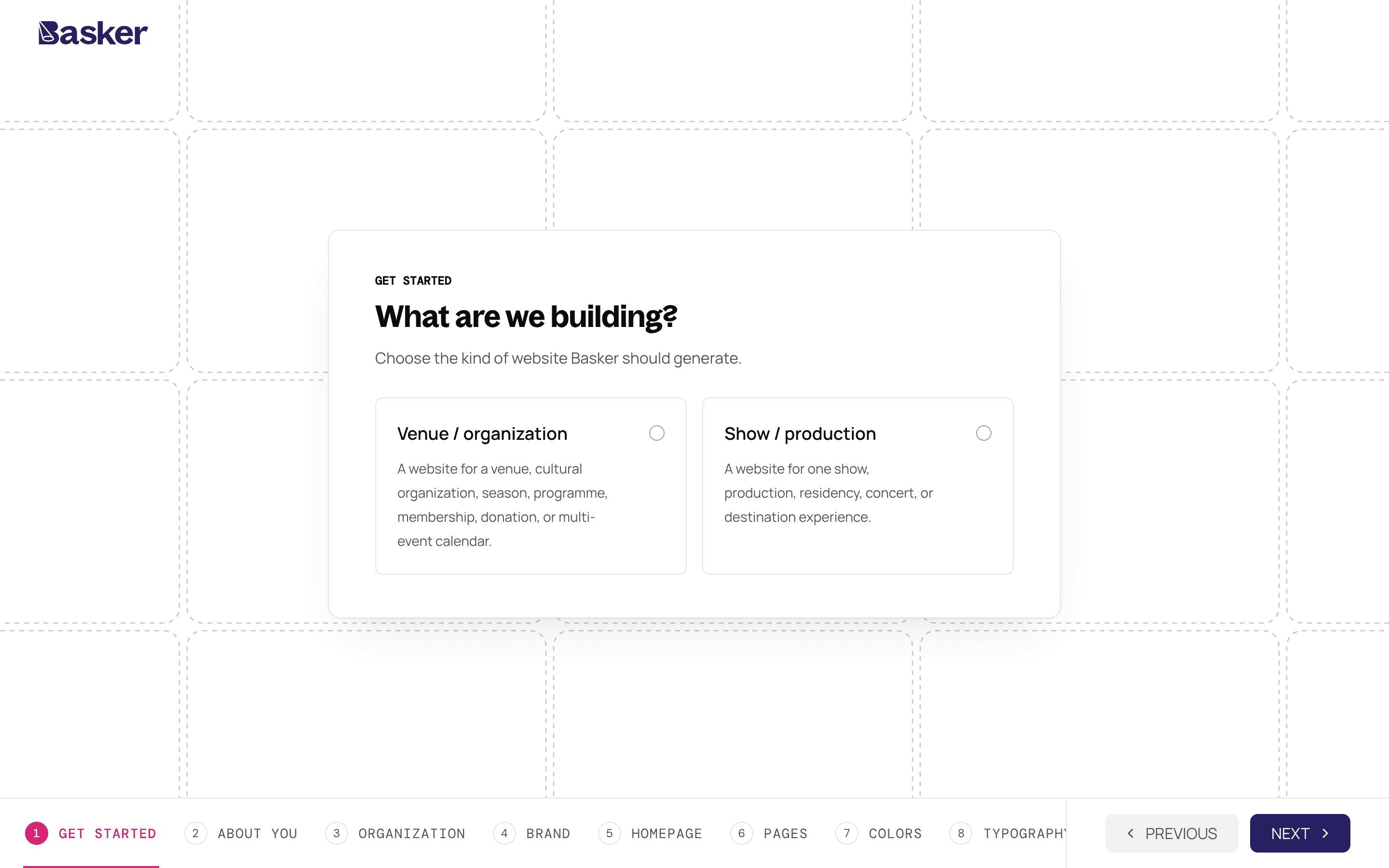
The first signup screen.
- 1Venue / organization — A site for a venue or a cultural organization with a calendar of events.
- 2Show / production — A site for one show, production, residency, or concert.
- 3Previous — Goes back one step.
- 4Next — Goes to the next step.
Enter your details
On Create your Basker account, enter your First name, Last name, and Email. Choose your Primary location. Basker uses the location for the currency, the timezone, and the regional defaults of your site.
Complete the security check, then click Next.
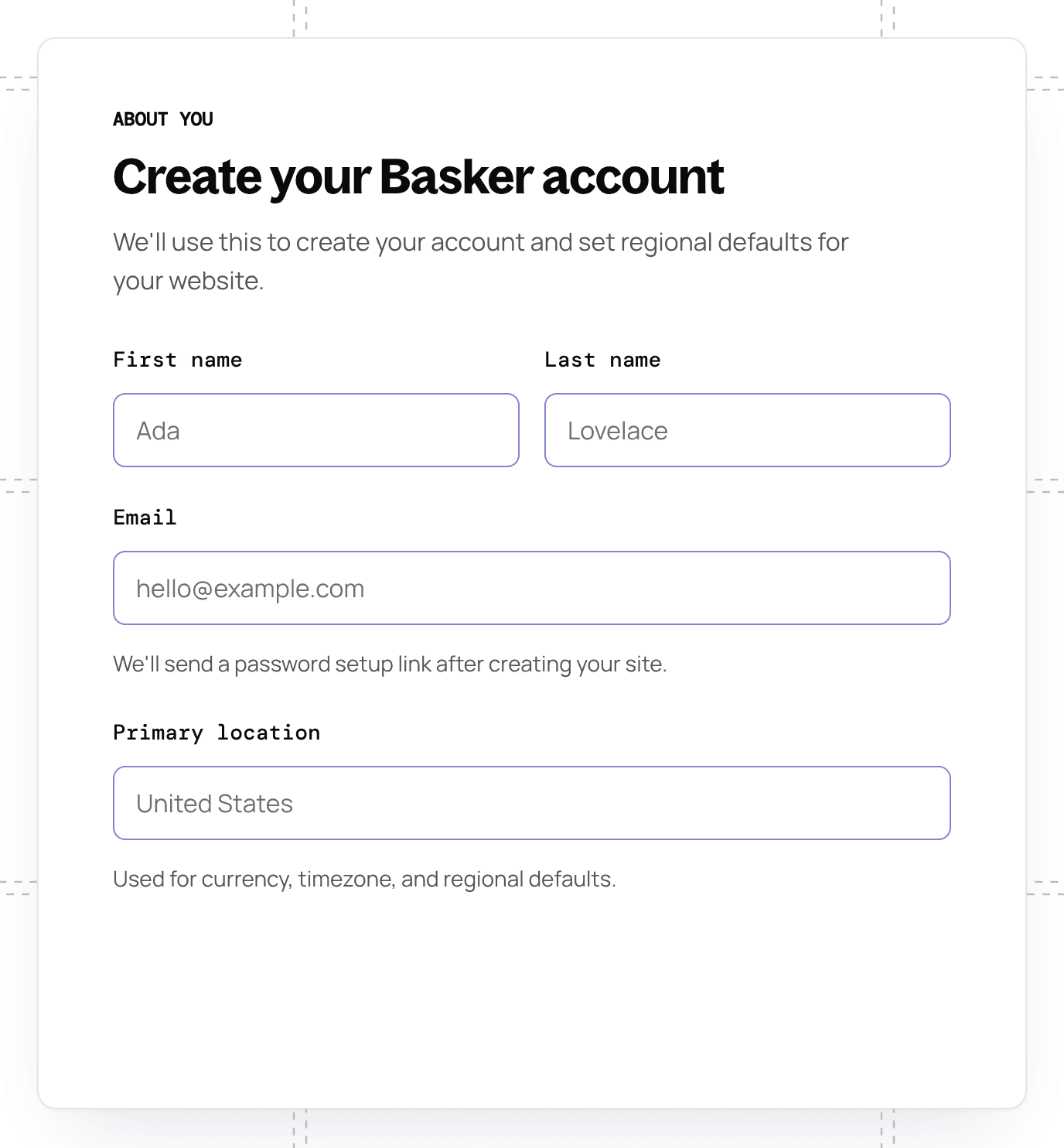
The account details step, before the security check.
- 1First name — Your first name.
- 2Last name — Your last name.
- 3Email — Basker sends the verification code and the password link to this address.
- 4Primary location — Sets the currency, the timezone, and the regional defaults of your site.
Verify your email
Basker sends a six-digit code to your email address. The code expires in 10 minutes. Enter the code on Verify your email.
If the code does not arrive, wait 30 seconds, then click Resend code. To correct your address, click Change email.
Describe your organization or your show
For a venue or an organization, enter the Organization name and choose the Organization type. Some types show a second, optional choice. If another site uses the name, Basker asks you for a different name.
For a show, enter the Show title and the Venue. Choose the Art form. Your organization is the producer, the promoter, or the company behind the show.
Add your brand
Confirm the Site name and upload your Logo.
For a venue or an organization:
- Current website: optional. Enter the address and click Generate brand. Basker reads the colors and the fonts of that website, then suggests a palette and a font pairing.
- Brand personality: choose Classic, Modern, Contemporary, Minimalist, Playful, or Vibrant. The choice sets the type, the button shape, and the tone of the starter text.
For a show, the Hero image is optional. Basker uses the image for the homepage hero and to suggest colors.
Choose your homepage sections
On Choose your sections, turn each homepage section on or off. Drag a section to change the order. The preview shows the homepage with your choices.
Pick your pages
On Pick your pages, select the pages to include, such as About or Membership for an organization, or Tickets and FAQs for a show.
Choose your colors and your fonts
On Choose your palette, select a Color palette. If Basker read colors from your website or your hero image, that palette is first in the list.
On Select your fonts, select a font pairing.
Choose your ticketing system
On Where do your tickets live?, select your ticketing system. Select Other if yours is not in the list. For a show, you can also enter the Official ticket URL.
Click Create my site. If Basker cannot create the site, it keeps your choices. Click Create my site again.
Open your site
When the site is ready, click Open the CMS. The Basker admin opens on your new site.
If you leave signup before you create the site, Basker keeps your personal details for 24 hours.
What your new site contains
- A no-code theme with the palette and the fonts that you chose. Four color schemes are ready: Default, Accent, Inverse, and Overlay.
- Example content: published pages, events with performance dates, seasons, series, works, venues, people, organizations, and a blog with posts. A show site has one show with its run of performances.
- Blueprints and templates for each type of content.
- An app for your ticketing system. The app has no credentials yet. See Apps.
- Password protection, turned on with a password that Basker generates. Visitors cannot see the site until you share the password or turn the protection off. See General settings.
Set your password
After Basker creates the site, it emails you a link to set your password. Open the link, enter a New Password and Confirm Password, then click Reset Password. Use this password the next time that you sign in. See Sign in to Basker.
The welcome tour
The first time that the admin opens, Basker shows Welcome to Basker. Click Get started. The tour lets you choose a light or dark style, shows the command menu, and lets you invite your team. Click Continue on each screen, then Finish.