Reports
Find broken links, see which missing pages visitors request, and find where each block is used on your site
The Reports group under Website has three reports for the selected site:
- Broken links: links in your published content that do not work.
- 404 errors: addresses that visitors requested and that do not exist on your site.
- Block usage: every place where a block is used in your content.
The Site health widget on the dashboard shows a summary of the broken links and 404 errors reports.
Run the broken links report
The Broken links report checks the links in your published content. It finds external links that fail, and internal links to content that does not exist or is not published. The report checks pages, posts, events and their performances, people, seasons, series, works, venues, organizations, blogs, smart collections, reusable sections, layouts, and templates.
Open the report
Open Broken links under Website.
Start the check
Click Run now. The report shows The report is queued., then Checking links…. A large site can take a few minutes.
Read the result
The report updates itself when the check is complete. The line below the description shows Last completed with the date and the person who started the run.
During a run, the results of the previous run stay on the screen. To check again after you fix links, click Run now again.
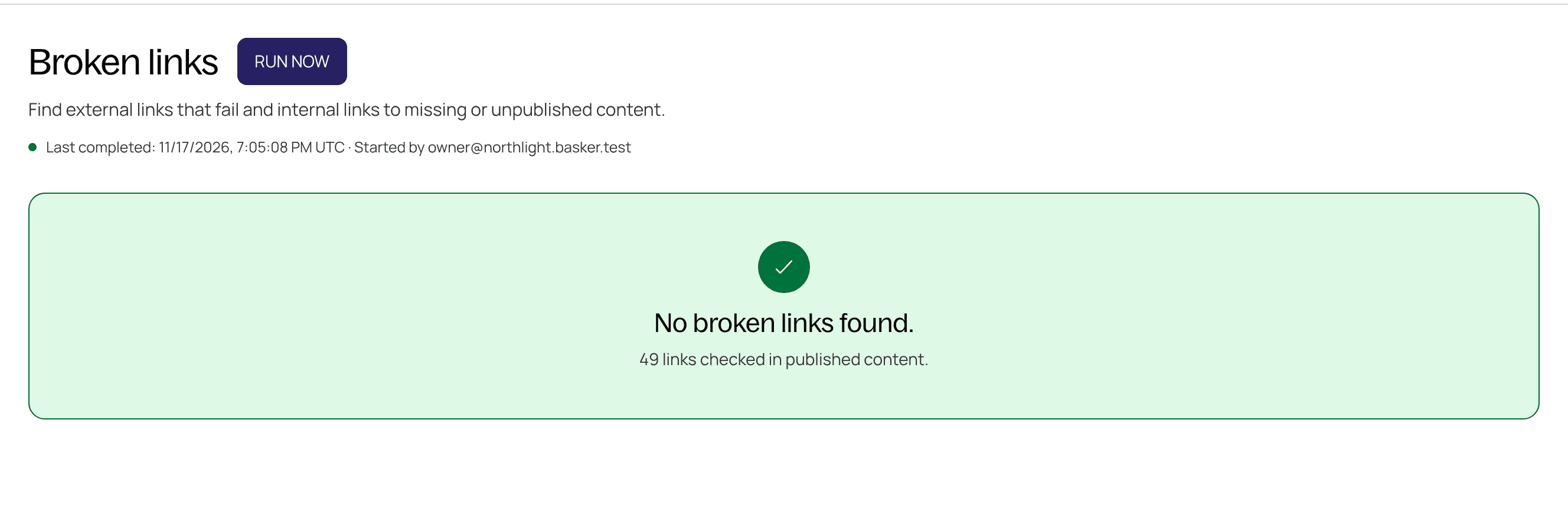
Read the broken links results
When the report finds broken links, it shows the number of Broken links and the number of Links checked. Each broken link has one of these result types:
- Missing content: the link goes to content that does not exist on your site.
- Unpublished content: the link goes to content that exists but is not published.
- External error: the other website answered with an error. The result shows the status code, for example
404. - Unreachable link: Basker could not get an answer from the other website.
Click a result type to show only those links. To find a page or an address, enter text in the search field. The table has these columns:
- Source: the item that contains the link, and its area, for example Pages.
- Target: the address that the link goes to.
- Result: the result type, with the status code for an external error.
Click a row to open the details. The details show the Target, the Reason, where in the item Basker found the link (Found in), and Last checked. Click Edit document to open the item, or Copy URL to copy the address.
Fix a broken link
- Missing content: change the link in the source item. If the content moved to a new address, you can also add a redirect from the old address.
- Unpublished content: publish the linked content, or change the link.
- External error or Unreachable link: open the address in your browser. If it no longer works, change or remove the link.
Run the report again to confirm the fix.
Find missing pages
The 404 errors report lists the addresses on your site that visitors requested and that do not exist. Basker collects this data from visits to your site. The report has no Run now button.
Open 404 errors under Website. The report needs a domain that Basker hosts for your site. Without one, the report shows No domains to report on. See Domains.
- Last 24 hours and Last 7 days: the period of the report.
- All domains: choose one domain to show only its requests.
- 404 requests: the total number of requests in the period.
- Distinct paths: the number of different addresses.
- Requests per day: a bar for each day. It shows only for the last seven days.
The table has these columns:
- Path: the address that the visitor requested, and the domain.
- Hits: the number of requests for the address.
- Last seen: the time of the latest request.
- Top referrer: the page that sent the most visitors to the address. No referrer means that visitors typed the address or used a bookmark.
To find an address, enter text in Search paths. Click Download CSV to download the rows in the report.
Act on a missing page
Click a row to open the details. The details show the Hits, Last seen, and all Referrers for the address.
- If the address worked before, for example on your old website, click Create redirect and add a redirect to the new address. See Add a redirect.
- If the referrer is a page on your own site, correct the link on that page.
Get the 404 errors report by email
Open the email settings
Click Email delivery on the 404 errors report.
Add a rule
Click Add rule. Choose a domain, or keep All domains.
Choose when to send
Choose Hourly, Daily, or one or more days under Weekly on. A rule with no choice sends nothing.
Enter the recipients
Enter up to 10 email addresses in Recipients. Separate the addresses with commas.
Save the rules
Click Save.
Daily and weekly emails send at about 02:10 UTC and cover whole days in UTC.
Find where a block is used
The Block usage report lists each place where a block is used: in pages, reusable sections, layouts, and other content. A block in a reusable section shows once, in the section, and not again in each page that uses the section.
Open the report
Open Block usage under Website.
Choose what to scan
Choose a block, or keep All blocks. Choose an area, for example Pages, or keep All collections. Choose Published to scan only published content, or Latest, including drafts to include unpublished changes.
Run the scan
Click Run now. The report shows the number of items checked while it scans. To stop the scan, click Stop. The results of a stopped scan are not complete.
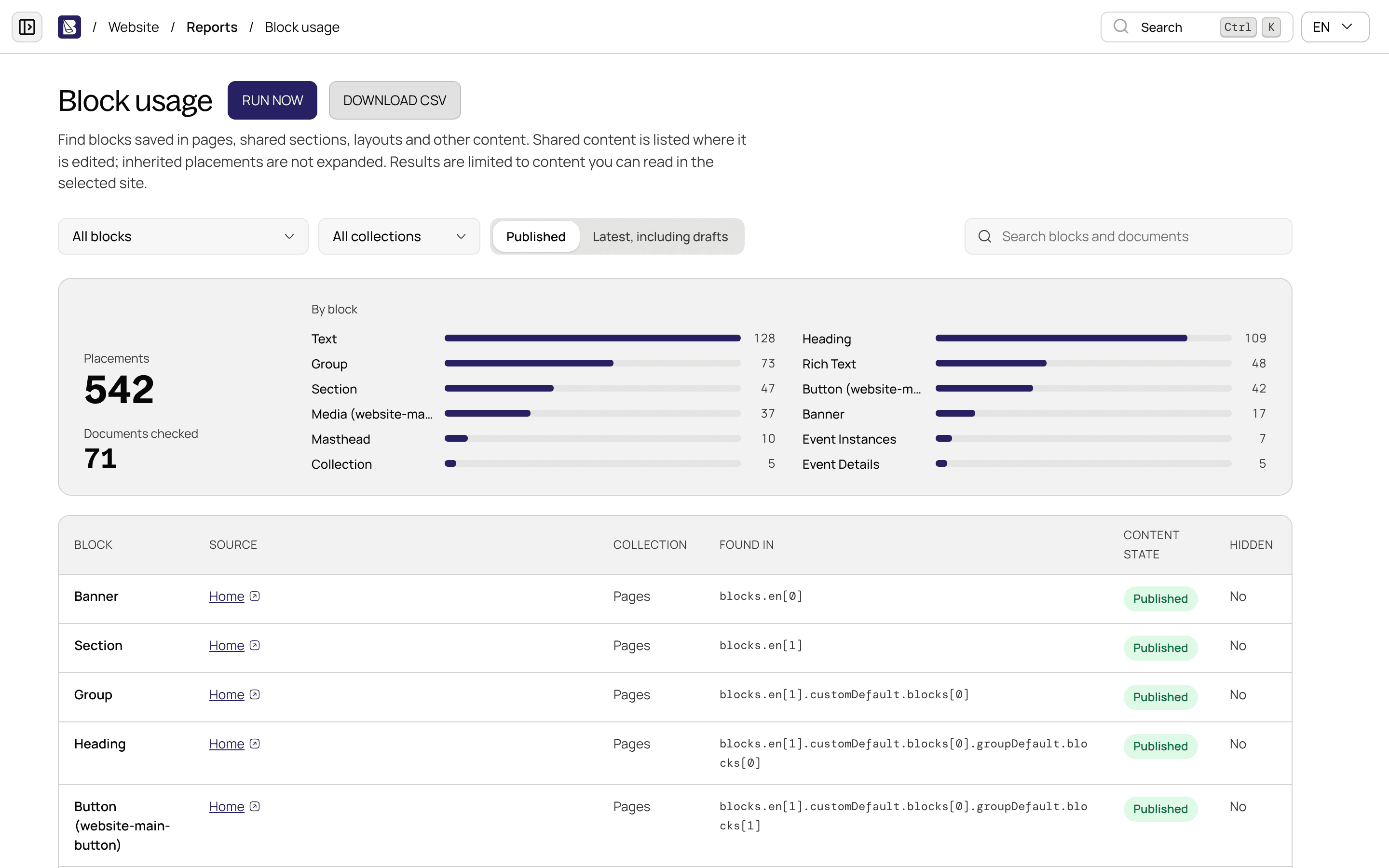
A Block usage scan of all blocks in published content.
- 1Download CSV — Downloads the rows in the table. Available when the scan is complete.
- 2Content state — Published scans only published content. Latest, including drafts includes unpublished changes.
- 3Search blocks and documents — Shows only the rows that match the text.
- 4All blocks — Choose one block to scan for.
- 5All collections — Choose one area to scan, for example Pages.
- 6Found in — Where in the item the block is.
When you change a filter, the report clears the results. Click Run now again.
Read the block usage results
- Placements: the number of times the blocks are used.
- Documents checked: the number of items that the scan read.
- By block: the blocks with the most placements. Click a block to show only its rows. Click it again to show all rows.
The table has these columns:
- Block: the block. For a reusable section, the row also links to the section.
- Source: the item that contains the block. Click it to open the item.
- Collection: the area of the item, for example Pages or Events.
- Found in: where in the item the block is.
- Content state: Published, Draft, or Saved. Saved is for content that has no publish step.
- Hidden: Yes when the block, or a block that contains it, is hidden on the site.
The report shows at most 10,000 placements. When a scan reaches this limit, choose one block or one area and run it again.
Before you change or remove a block, use the report to find the pages to update. You can also use it to find hidden blocks that are still in your content.