Set up the cookie banner
Turn on the cookie banner, choose a consent mode, and add the legal policy links that the banner and the footer show.
The cookie banner lets visitors choose which cookies to allow. Basker shows the banner on your site and applies each choice to the Google tags that the Google app loads.
The banner needs the Google app. You cannot turn the banner on until the Google app has a GTM Container ID or a Google Analytics Measurement ID.
Set up the Google app
Open Settings → Apps and enable the Google app. Then open the Google app under Apps and enter a GTM Container ID, a Google Analytics Measurement ID, or both. See Google tools.
Open the Cookie Banner section
Open Settings → Security and find the Cookie Banner section. The section shows Google is connected when the Google app is ready.
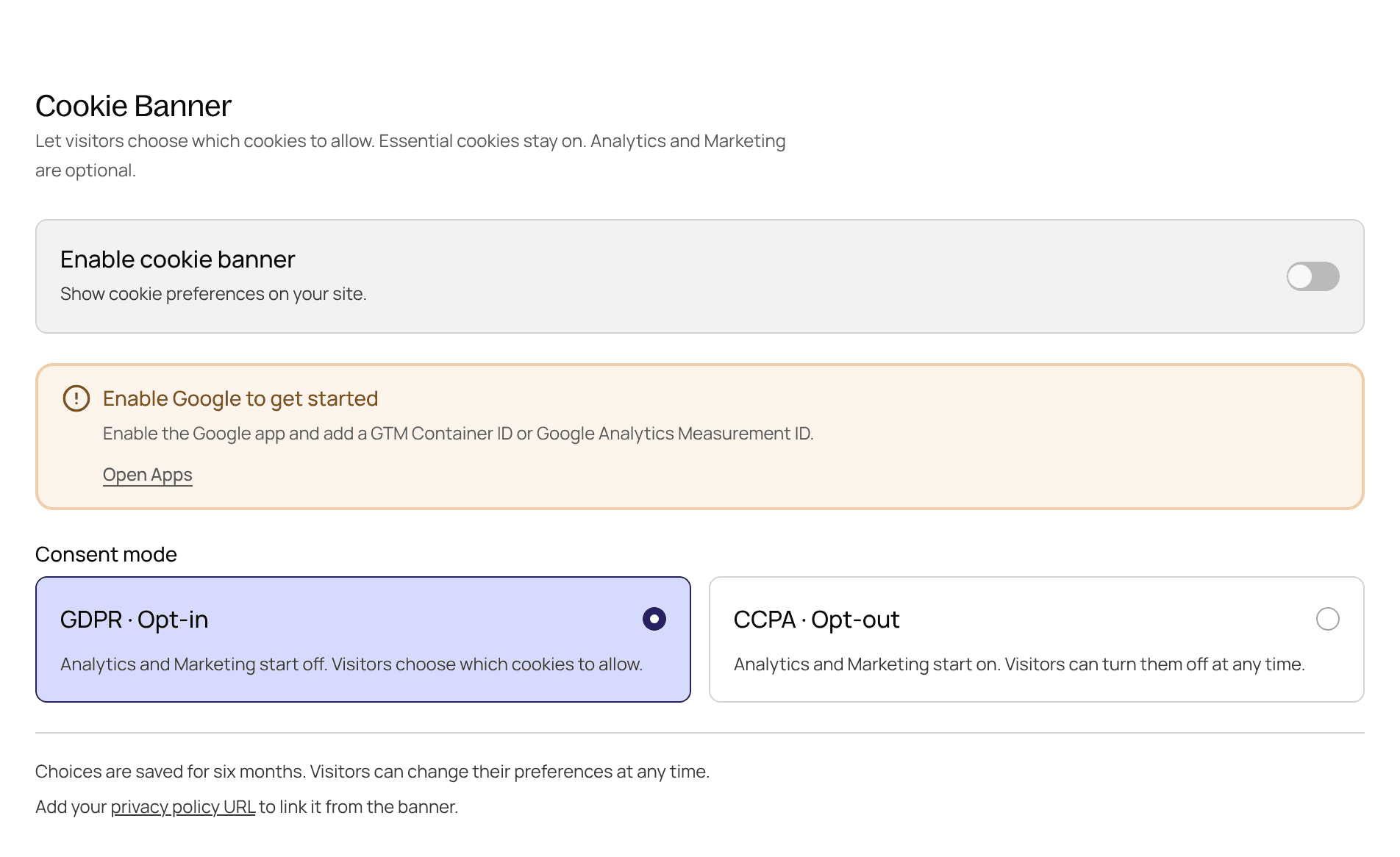
The Cookie Banner section before the Google app is set up.
- 1Enable cookie banner — Shows the cookie banner on your site.
- 2Enable Google to get started — The status of the Google app. You cannot turn the banner on until the Google app is ready.
- 3Open Apps — Opens the apps settings, where you set up the Google app.
- 4GDPR · Opt-in — Analytics and Marketing cookies start off.
- 5CCPA · Opt-out — Analytics and Marketing cookies start on.
- 6privacy policy URL — The banner links to the Privacy policy address that you enter in the Legal policies section.
Turn on the banner
Turn on Enable cookie banner.
Choose the consent mode
Choose GDPR · Opt-in or CCPA · Opt-out. See Consent modes.
Add your privacy policy
In the Legal policies section, enter the address of your Privacy policy. The banner shows a link to it.
Save
Click Save Changes.
Google app status
The Cookie Banner section shows the status of the Google app.
| Status | What to do |
|---|---|
| Google is connected | Nothing. You can turn the banner on. |
| Enable Google to get started | Enable the Google app and add a GTM Container ID or a Google Analytics Measurement ID. |
| Finish setting up Google | Add a valid GTM Container ID (GTM-…) or Google Analytics Measurement ID (G-…) in the Google app. |
If you disable the Google app after you turn the banner on, the banner stops. The section then shows Your saved banner is inactive. Set up the Google app again, or turn the banner off.
Consent modes
The consent mode applies to all visitors. Basker does not detect where a visitor is.
| Mode | Before the visitor chooses |
|---|---|
| GDPR · Opt-in | Analytics and Marketing are off. The visitor chooses which cookies to allow. This is the default. |
| CCPA · Opt-out | Analytics and Marketing are on. The visitor can turn them off. |
If you change the consent mode, Basker asks each visitor to choose again.
What visitors see
On a first visit, the Cookie preferences panel opens. The panel has three categories:
- Essential (always on): the visitor cannot turn this off.
- Analytics: cookies that measure how visitors use the site.
- Marketing: cookies for advertising and personalization.
The panel has three buttons:
- Accept all: allows Analytics and Marketing.
- Reject optional: turns off Analytics and Marketing.
- Save preferences: keeps the categories that the visitor selected.
After the visitor chooses, the panel closes and a Cookie preferences button stays on the page. The visitor can click it to change the choice. Basker keeps the choice for six months.
What the banner controls
The banner controls the Google Tag Manager and Google Analytics tags that the Google app loads. Google tags load before the visitor chooses, and they can send signals without cookies while consent is off.
What the banner does not control
The banner does not control these items: tags from other companies in your Google Tag Manager container, custom code scripts, embedded services, and reCAPTCHA. Set up consent for those separately. Basker does not guarantee that your site meets a privacy law.
If a custom theme adds its own Google Tag Manager or Google Analytics code, ask your theme developer to remove that code. If the code stays, the tags load twice.
Legal policies
The Legal policies section of Settings → Security holds three links.
| Link | Where it shows |
|---|---|
| Privacy policy | In the cookie banner and in the footer. |
| Cookie policy | In the footer. |
| Data Processing Agreement | In the footer only. This is often a PDF. |
- Enter a full address that starts with
http://orhttps://, or a path on your site that starts with/. - Leave a link empty to hide it.
- The links open in the same tab.
- On a no-code site, the footer shows these links in the Legal links block, after the links that you added there. Basker does not repeat a link that the block already has.