MCP server
Connect an AI assistant such as Claude, ChatGPT, or Cursor to your site so that it can read your content, and manage the keys and connected apps.
The MCP server tab on the API screen connects AI assistants, such as Claude, ChatGPT, or Cursor, to your site with the Model Context Protocol (MCP). A connected assistant can read your site. It cannot create, change, publish, or delete anything.
Open API under Settings, then click the MCP server tab. The tab shows the Server URL, your MCP keys, the Connect an assistant instructions, and the Connected apps.
The API screen needs administrator access to the site and a role with the API Settings permission. An assistant can connect only to a site whose plan includes API access.
What a connected assistant can read
An assistant acts as the person who connected it, with the permissions of that person's role. It sees only what that person can see. It can:
- Look up pages, posts, and events, with their publishing status and unpublished changes.
- Check what is on, and what is waiting to be published or is scheduled.
- Read seasons, venues, people, and works.
- Check broken links, 404 errors, and the ticketing sync.
- Search the Basker help docs.
Connect Claude with your Basker account
Claude on the web, desktop, or mobile connects with your Basker account. You do not need a key.
Copy the server URL
On the MCP server tab, click Copy next to Server URL.
Add the connector in Claude
In Claude, open Settings → Connectors → Add custom connector, and paste the server URL.
Sign in with Basker
Sign in with your Basker account. Basker asks if you allow the app to use Basker, and shows what the app will be able to do.
Choose the sites
Under Choose the sites it can use, select one or more sites. A site that the app cannot use shows the reason, for example that the plan does not include API access.
Allow the connection
Click Allow. Basker returns you to Claude. To stop, click Deny.
If Basker cannot confirm who made an app, the sign-in screen shows a warning. Only continue if you started the connection yourself.
Create an MCP key
Use a key for an assistant that does not sign in with Basker, for example Claude Code. A key acts as the person who created it, and it works only on this site.
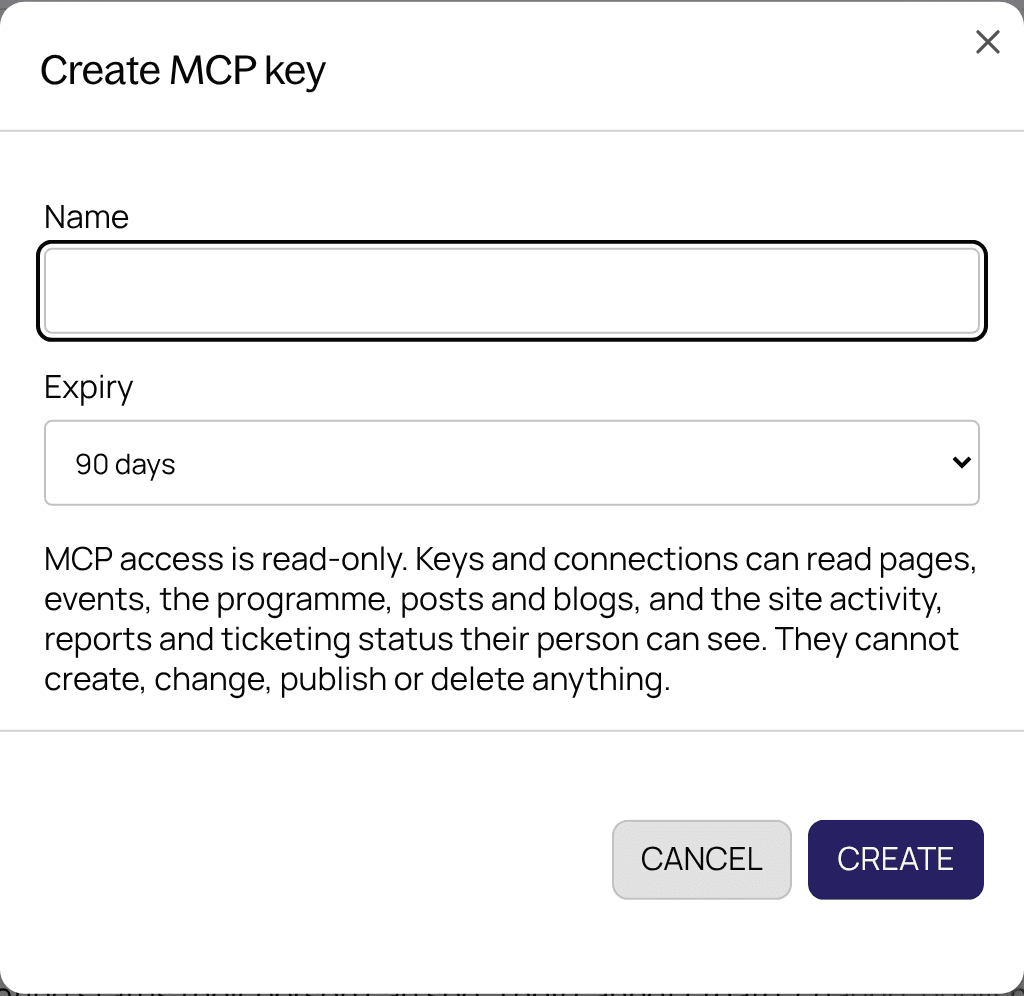
Name the key
Enter a Name, for example the name of the assistant. Each key on the site needs a different name, including API keys and revoked keys.
Choose the expiry
Choose the Expiry: 30 days, 90 days, 1 year, or Never. The default is 90 days.
Create the key
Click Create.
Copy the key
The dialog shows the key, a command for Claude Code, and a configuration for other assistants. Each one already contains the key. Copy what your assistant needs and store the key in a safe place. Basker shows the key only one time. Select I have copied this credential, then click Done.
To add the server later, use the Connect an assistant section on the tab. It shows the same command and configuration with <MCP_KEY> in place of the key. Replace <MCP_KEY> with your key.
A site can have up to 25 keys that are not revoked. This limit includes the keys on the API keys tab.
Find and revoke an MCP key
The MCP server tab lists each key with its Name and expiry, Key, Created by, Created, Last used, and Status. The Key column shows only the start and end of the key. A key is Active, Expired, or Revoked.
To revoke a key, click Revoke key on its row. In the dialog, click Revoke key again. An assistant that uses the key loses access at once. You cannot undo a revoke.
Disconnect a connected app
Connected apps lists the AI assistants and other apps that people allowed to use this site by signing in with Basker. Each row shows the App, Connected by, Access, Connected, and Last used.
To remove an app from this site, click Disconnect on its row. In the dialog, click Disconnect again. The app loses access to this site at once. If the person connected the app to other sites, those sites keep the connection.