Dashboard
What each widget on the Basker dashboard shows, and how to change the layout of your dashboard
The dashboard is the first screen you see after you sign in. It shows a set of widgets for the selected site: upcoming performances, the ticketing sync, broken links and missing pages, and recent changes. To open the dashboard from another screen, click the Basker logo at the top left.
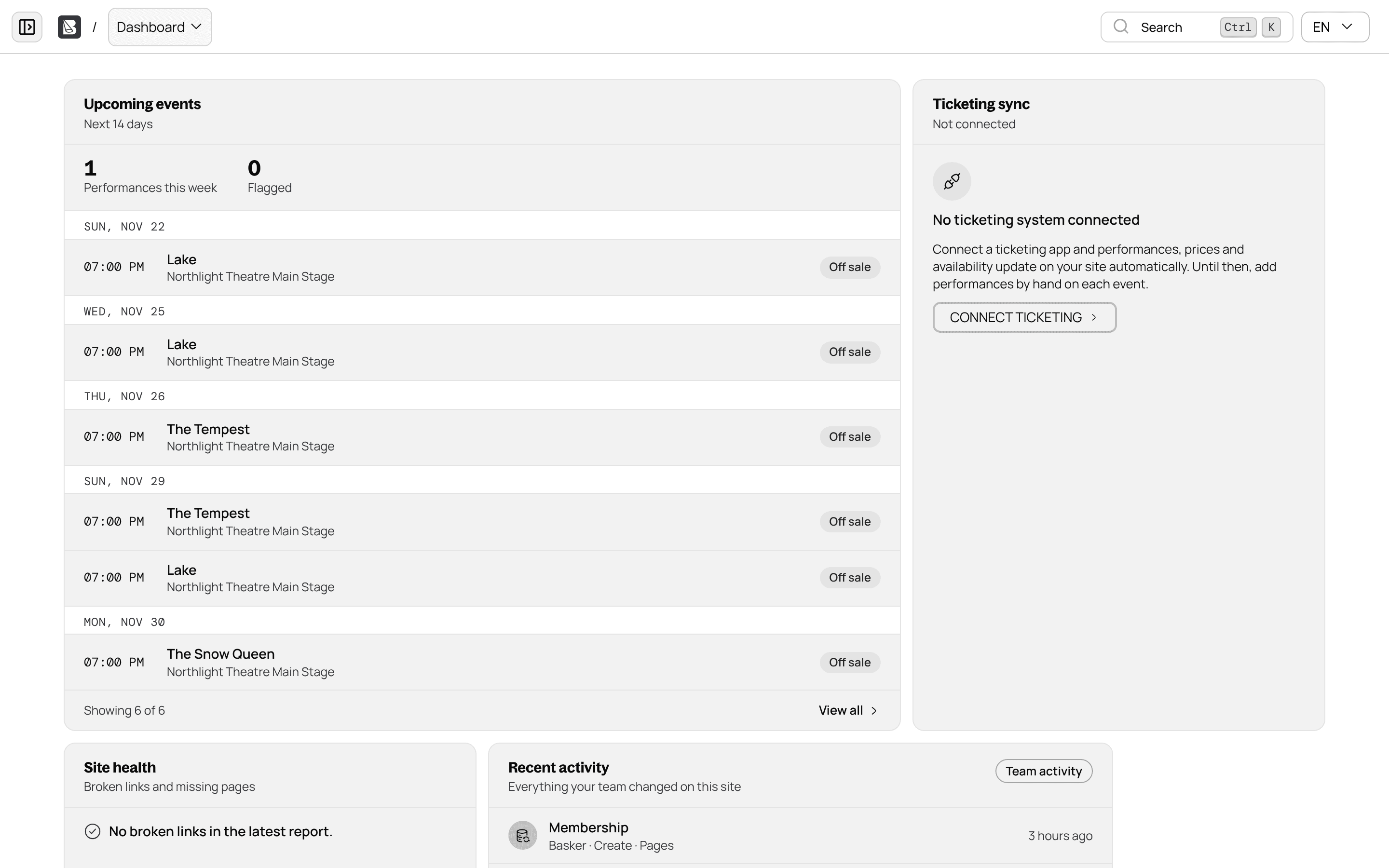
The top of the dashboard.
- 1Dashboard — Opens the menu with Edit Dashboard and Reset Layout.
- 2Flagged — The number of performances in the timeframe that are not published, or that belong to a draft event.
- 3Off sale — The booking status of the performance.
- 4Connect ticketing — Opens the apps screen, where you connect a ticketing app.
- 5Site health — The result of the latest broken links report, and missing pages when 404 data is available.
- 6Team activity — Shows which list the Recent activity widget shows: Team activity or My recent edits.
Upcoming events
The Upcoming events widget lists the performances in the next 14 days. To show 7 or 30 days, change the Timeframe of the widget. See Change a widget's settings.
- Performances this week: the number of performances in the next seven days.
- Flagged: the number of performances in the timeframe that need attention before they show on your site. A flagged performance has the label Unpublished when the performance is not published, or Draft event when its event is a draft.
Below the numbers, the widget lists the next six performances by day. Each row shows the start time, the title, the venue, and the booking status: On sale, Coming soon, Sold out, Off sale, Cancelled, or Waitlist. Click a row to open the event.
Click View all to open the Events list. When the timeframe has no performances, the widget shows Go to Events instead.
Ticketing sync
The Ticketing sync widget shows whether performances, prices, and availability come into Basker from your ticketing system.
- With no ticketing app connected, the widget shows No ticketing system connected. Click Connect ticketing to open the apps screen.
- With a ticketing app connected, the widget shows a status for each app, such as In sync or Needs attention. It also shows the time of the last and the next sync.
For each status and what to do, see Ticketing sync.
Site health
The Site health widget shows broken links and missing pages on your site.
- No site report yet: nobody has run the broken links report for this site. Click Run a report to open the report.
- No broken links in the latest report.: the latest report found no broken links.
- Broken links: the number of broken links in the latest report. Click the number to open the report.
- Report running or The latest report failed.: the state of the latest run.
- 404s this week: the number of requests in the last seven days for pages that do not exist. A bar shows each day. Top missing pages lists the three addresses with the most requests. This part shows only when 404 data is available for your site's domains.
Click Reports at the bottom of the widget to open the reports. See Reports.
Recent activity
The Recent activity widget lists the latest changes on the site. It has two lists. Choose one with the Show setting of the widget.
- Team activity (default): changes by everyone on your team, and changes that Basker makes, such as syncs. Each row shows the item, the person, the action, the area, and the time. When a person saves the same item several times in a row, the widget shows one row.
- My recent edits: the items that you edited, one row for each item. Use it to open an item that you worked on recently.
Click a row to open the item. Click View all to open the site activity log. See Site activity.
Drafts & scheduled
The Drafts & scheduled widget shows changes that are not on your site yet.
- Unpublished changes: saved drafts, with the area and the time of the last edit.
- Coming up: scheduled changes, with the date and time that each item publishes or unpublishes.
Click an item to open it. Click Go to Pages to open the Pages list.
Assistant
The Assistant widget is a chat that answers questions about your site and about how to use Basker. It can read your site but cannot change it. Click a suggested question, or type a question and send it. Click New chat to start again. On a plan without the AI assistant, the widget shows The AI assistant is not on your plan. See AI features.
Support tickets
The Support tickets widget lists the tickets that you and your organization raised with Basker support, with the status of each ticket. Click New ticket to contact support.
Help & quick create
The Help & quick create widget has shortcuts:
- New page, New event, New post, and New announcement open a new item. The widget shows only the items that your role can create.
- Browse the docs opens the Basker documentation in a new tab.
- Ask support opens the support chat.
Change the layout
Each person has their own dashboard layout. A change that you make does not change the dashboard of other people.
Open edit mode
Click Dashboard at the top of the screen, then click Edit Dashboard. The top bar shows Editing Dashboard.
Change the widgets
Move the pointer over a widget to show its controls. Use the controls to change the widget:
- To move a widget, drag it to a new position.
- To change the width, choose a size from the width menu. The sizes differ by widget.
- To remove a widget, click the delete button (×).
- To add a widget, click Add and choose a widget in Add Widget.
Save the layout
Click Save changes. To discard your changes, click Cancel.
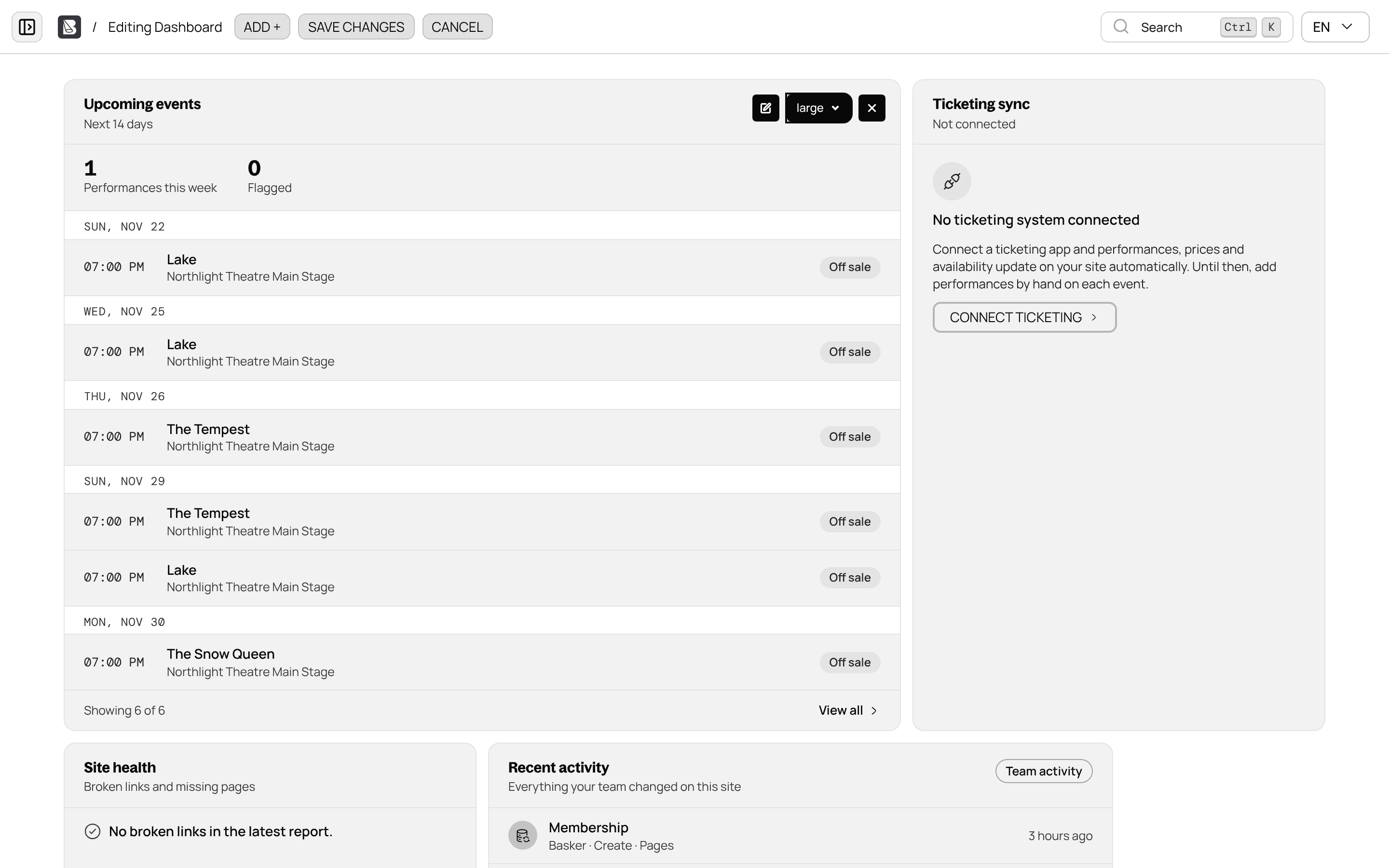
Edit mode, with the controls of the Upcoming events widget.
- 1Add — Opens Add Widget, where you choose a widget to add.
- 2Save changes — Saves the layout and closes edit mode.
- 3Cancel — Discards the changes and closes edit mode.
- 4Edit — Opens the settings of the widget. Only widgets with settings have this button.
- 5large — The width of the widget. Choose another size from the menu.
- 6Delete widget — Removes the widget from your dashboard.
To go back to the standard layout, click Dashboard, then click Reset Layout.
Change a widget's settings
Two widgets have settings:
- Upcoming events: Timeframe, with Next 7 days, Next 14 days, or Next 30 days.
- Recent activity: Show, with Team activity or My recent edits.
Open the widget settings
Open edit mode. Move the pointer over the widget and click the edit button (pencil icon).
Choose the setting
Choose a value. Click Save changes in the panel.
Save the layout
Click Save changes in the top bar.