Usage
See how much of your plan your site uses, with AI credits, storage, staff accounts, and languages, and count the content on your site.
The Usage screen shows how much of each plan allowance your site uses. It also shows the AI credits and the storage over time, and the number of items of each content type.
Open Settings → Usage. To see the screen, your role needs the Usage permission. See Roles and permissions.
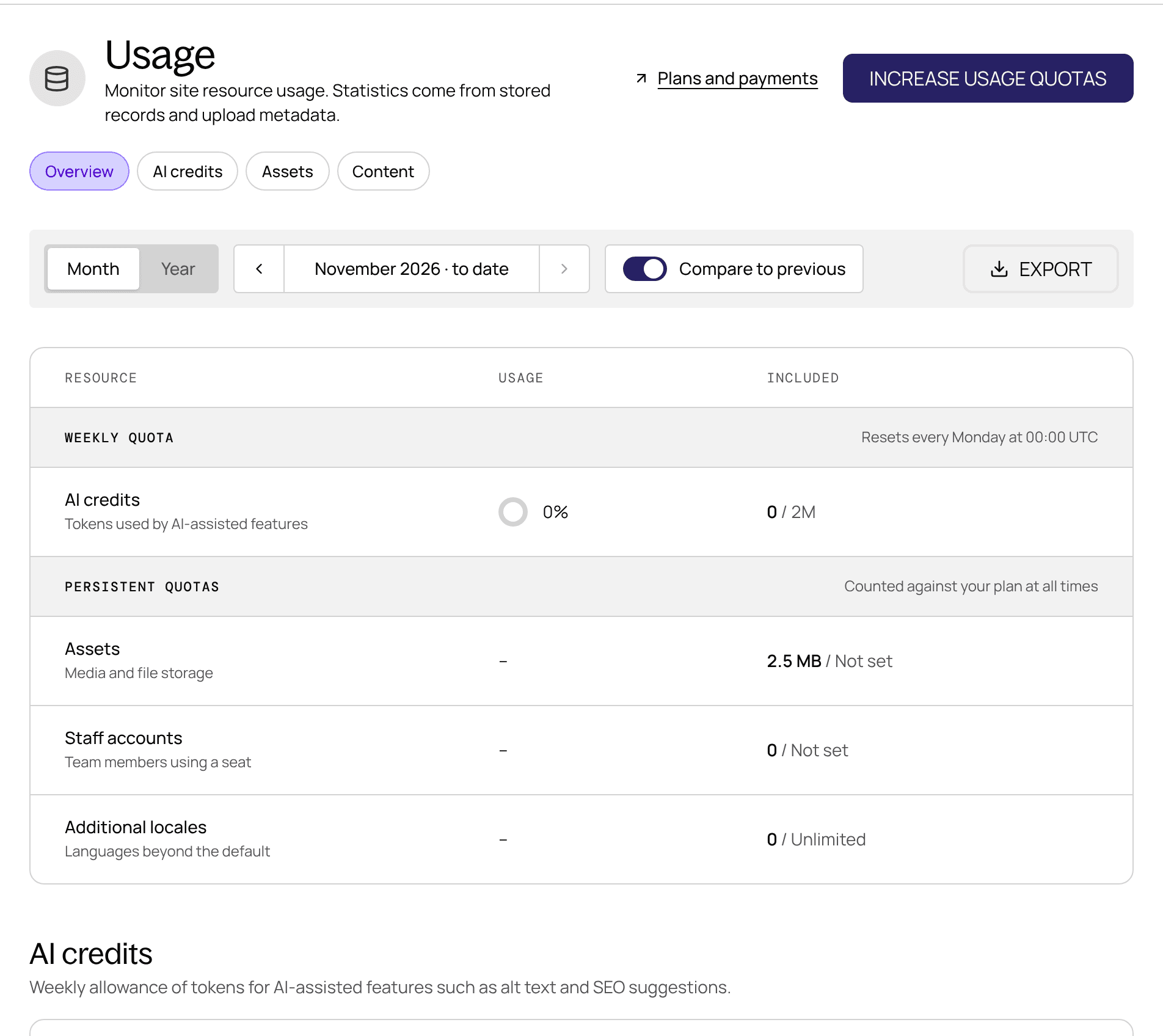
The plan quotas at the top of the Usage screen.
- 1Plans and payments — Opens the Basker pricing page in a new tab.
- 2Increase usage quotas — Opens the Your Plan section of the General settings.
- 3Month — Shows one month or one year. Use the arrows to go to an earlier period.
- 4Compare to previous — Adds the previous period to the charts.
- 5Export — Downloads the figures for the period as a CSV file.
- 6Weekly quota — The allowance that resets every week.
Plan quotas
The table at the top compares your use with your plan:
- Resource: the allowance. Click it to go to its section or screen.
- Usage: the percentage of the allowance that the site uses.
- Included: the amount used and the amount that the plan includes.
The allowances are in two groups:
- Weekly quota: AI credits, the tokens that the AI features use. The quota resets every Monday at 00:00 UTC. See AI credits.
- Persistent quotas: counted against your plan at all times.
- Assets: the storage that your media and files use.
- Staff accounts: the team members who use a seat. Click it to open Users & Permissions.
- Additional locales: the languages in addition to the default language of the site. Click it to open Languages.
Included shows Unlimited when the plan has no limit, and Not set when the plan sets no amount. In both cases, Usage shows a dash.
When a quota is at the limit
When a resource reaches the amount in your plan, a notice at the top of the screen names it and shows Adding more needs an add-on or a higher plan. Click View plan to open the Your Plan section of the general settings. See Choosing a Basker plan.
- AI credits: the AI features stop until the weekly reset.
- Staff accounts: Users & Permissions shows Staff limit reached., and you cannot add staff.
- Additional locales: Basker does not let you add more languages. The message shows the language limit of the plan.
Choose the period
The charts below the table show one period. The current period ends today.
Choose the period type
Click Month or Year.
Go to an earlier period
Click the arrows on each side of the period name. The earliest period is January of last year.
Compare with the previous period
Turn on Compare to previous to show the previous period in the charts. It is on by default.
To download the figures, click Export. The CSV file has one row for each day of a month, or for each month of a year, with the AI tokens and the storage in bytes.
AI credits
The AI credits section shows the AI tokens that the site used in the period. Click Daily to show the use for each day, or Running total to add up the use over the period.
This week by feature shows the tokens that Alt text, SEO title, and SEO description used this week.
Assets
The Assets section shows the Storage that your media and files use over the period. Assets by collection shows the number of items and the storage for Media and for Files.
Basker calculates the storage history from the upload dates. A file that you deleted does not show in earlier periods.
Content
The Content section counts the items of each content type: events, event instances, series, seasons, pages, people, works, venues, organizations, blogs, and posts. Total includes drafts. Published counts only the published items. Content has no plan limit.