The Design area
How the Design screens work, and which screen changes each part of your site's look.
The Design area holds the styles that your blocks share: colors, type, buttons, cards, and the header and footer. A change to one of these styles changes each block that uses it.
The screens
| Screen | What it holds |
|---|---|
| Themes | The themes on your site, and the theme that is live. See Themes. |
| Layouts | The header and footer that pages share. See Layouts. |
| Buttons | Button presets. See Buttons. |
| Pills | Presets for tags and small labels. See Pills. |
| Inputs | Presets for form fields. See Inputs. |
| Cards | Card presets for listings. See Card presets. |
| Modals | Presets for pop-ups. See Modal presets. |
| Presets | Saved designs for blocks. See Block presets. |
| Typography | Paragraph styles, fonts, and link styles. See Typography. |
| Color Schemes | The color palettes that blocks use. See Color schemes. |
The Design area also has Templates and Blocks. The Presets screen shows only when your site uses a Website Builder theme.
The parts of a Design screen
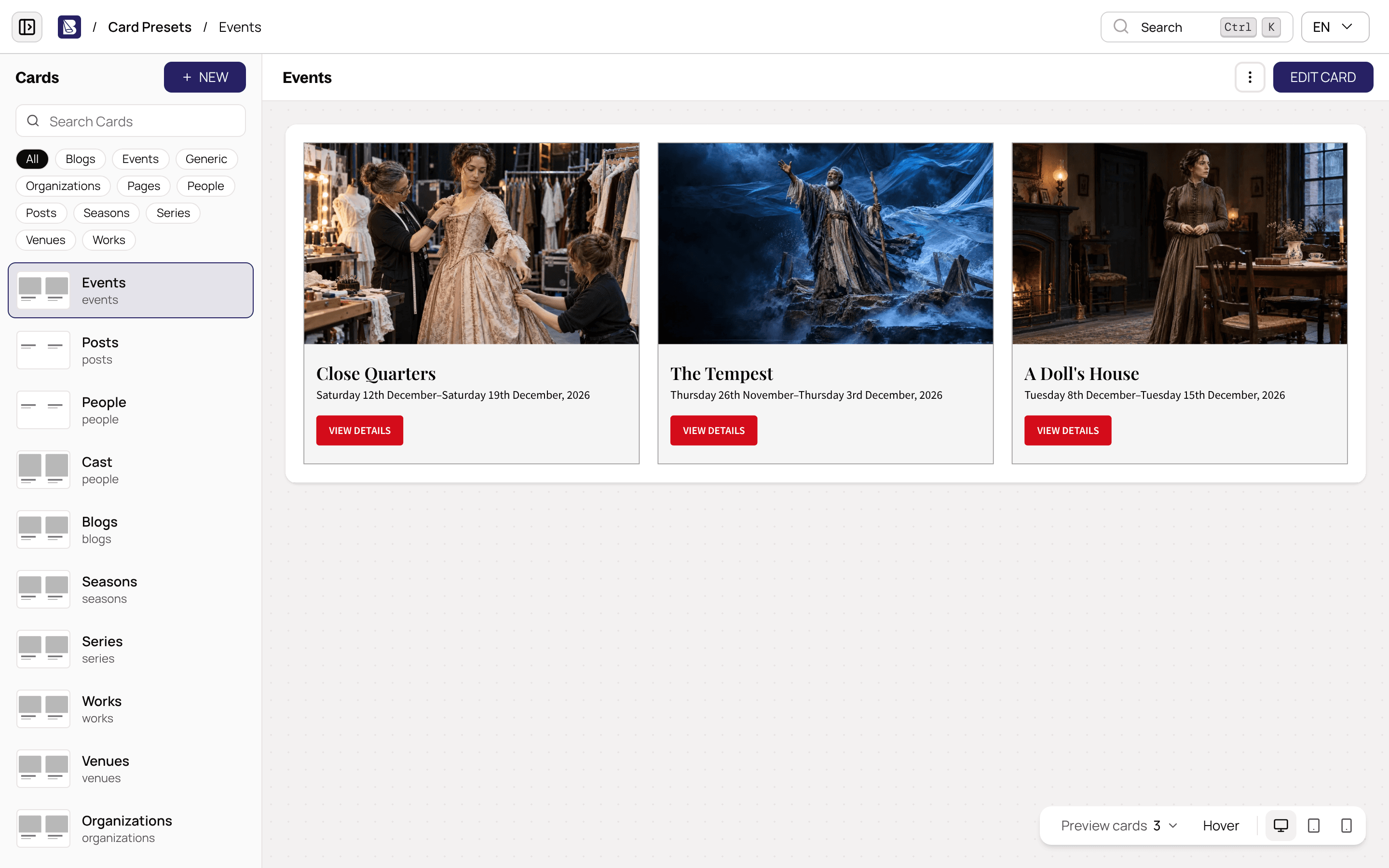
The Cards screen, with the list on the left and the preview of the selected card.
- 1New — Creates an item and opens it in the editor.
- 2Edit card — Opens the selected item in the editor.
- 3Desktop — Sets the preview width. Tablet and mobile widths are next to it.
Each Design screen has these parts:
- The list: the items on the left, with a New button and a search box. Some screens add filters above the list. A Default badge marks the default item.
- The preview: the selected item in the middle, shown with the styles of your theme. On most screens, choose Desktop, Tablet, or Mobile to change the preview width.
- The settings: the options of the selected item on the right.
On Typography and Color Schemes, the settings show next to the preview, with Save below them. On Buttons, Pills, Inputs, Cards, and Presets, the settings show in the editor. Click New, or select an item and click the edit button above the preview, for example Edit card. The editor shows the preview in the middle and the settings on the right. On Buttons, Pills, and Inputs, the Preset picker is on the left. Save and Done are at the top right. Click Back to go back to the list.
Create an item
Open the screen
Open the screen under Design, for example Design → Buttons.
Click New
Click New. On most screens the item starts with default values. On Presets, New opens a list of blocks: choose the block that the preset is for.
Choose a starting point
Where the screen shows a Preset picker, choose a starting point. The picker changes the values of the item. You can change each value afterward.
Name and save the item
Enter a name, then click Save.
Edit an item in the editor
Buttons, Pills, Inputs, Cards, Modals, Presets, and Layouts have an editor that fills the screen. To open it, select the item and click the Edit button above the preview, for example Edit button. A new item on these screens opens in the editor, except on Presets.
The editor shows the structure of the item on the left, the preview in the middle, and the settings on the right. Click a part in the structure to see its settings. Click Back or Done to close the editor. If you have changes that are not saved, Basker asks you to save or discard them first.
Save and undo
- Undo and Redo step through your changes to the open item.
- The status beside them shows New, Unsaved, or Saved.
- Save stores the item. On screens other than Themes, a saved change shows on the live site.
On Themes, you save a draft and then click Deploy to make it live.
More actions
The More actions menu above the preview has these actions:
- Duplicate: makes a copy named "Copy of" and the item name.
- Make default: makes the item the default. Shows on Layouts.
- Discard changes: removes the changes that you did not save.
- Delete: deletes the item. Basker asks you to confirm.
Some screens do not let you delete an item that the site needs. For example, you cannot delete the default color scheme or the last layout.