Block presets
Save the design of a block as a preset, and use the preset on blocks across your site.
A block preset is a saved design for one type of block. A preset holds design settings only, for example the layout, sizes, and colors. It does not hold text, images, or links.
Blocks that have presets show a Preset picker at the top of the block. The Presets screen shows only when your site uses a Website Builder theme.
Where presets show
Open Design → Presets. The list groups the presets by block, under the same group names as the Add Block panel, for example Media and Text.
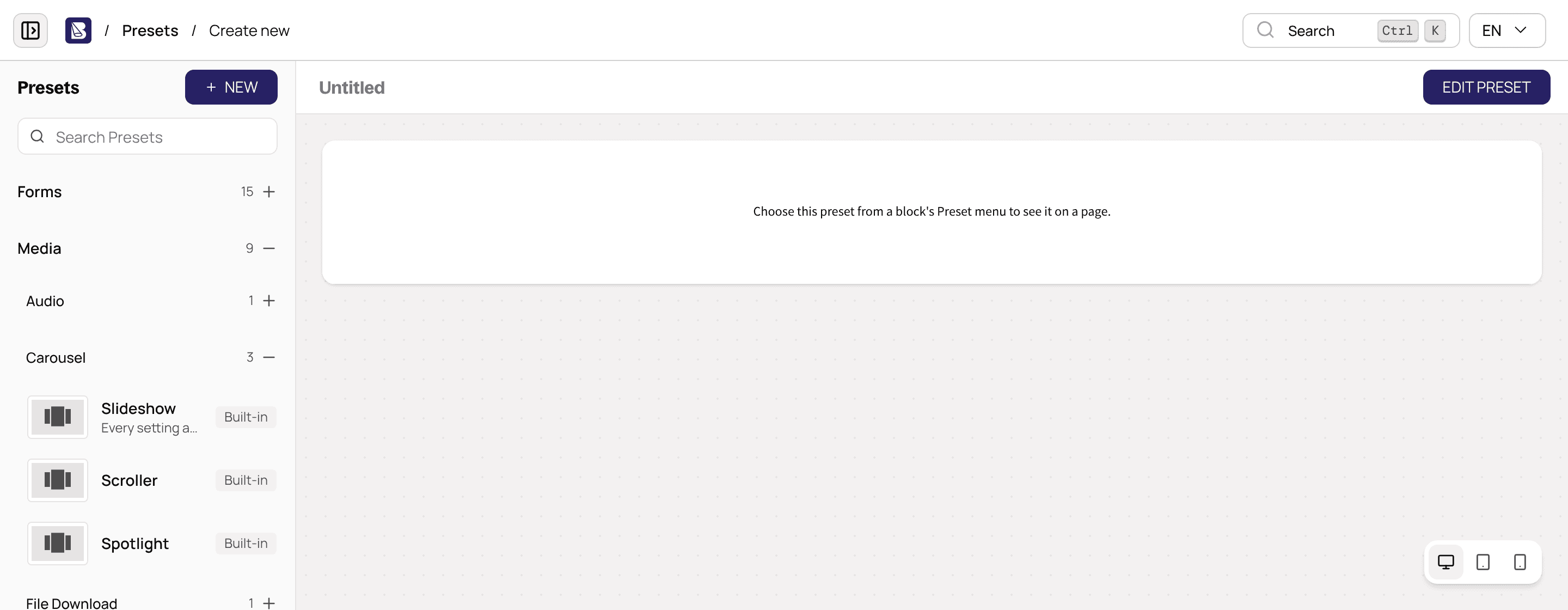
The presets of the Carousel block.
- 1New — Creates a preset. Choose the block that it is for.
- 2Edit preset — Opens the selected preset in the editor.
- 3Media — A group of blocks, with the number of presets in it.
- 4Carousel — One block, with its presets below it.
- 5Desktop — Sets the preview width. Tablet and mobile widths are next to it.
A Built-in badge marks a preset that comes with the block. A built-in preset stays in the list until the theme saves its own version of it.
These blocks do not have presets: text, heading, button, embed and code blocks, Group, Row, Reusable Section, headers, and footer groups.
Create a preset
Open Presets
Open Design → Presets.
Choose the block
Click New, then choose the block that the preset is for.
Name the preset
Enter a Name. Two presets for the same block cannot have the same name. Optionally enter a Description, which shows below the name in the list.
Set the design
Click Edit preset. The editor shows the block with sample content. Change the design settings on the right. Where the block has parts that you can show or remove, the structure on the left lists them.
Save
Click Save.
Change a built-in preset
- Select the built-in preset in the list.
- Click Edit preset and change the design.
- Click Save.
The theme now has its own version of the preset. To go back, open the More actions menu and click Reset to built-in. Basker removes the changes of the theme and uses the built-in version again.
Use a preset on a block
- Open the page and expand the block.
- Choose the preset in the Preset picker.
To remove style changes from a block, open the block's actions menu and click Reset style.
For some blocks, the preview on the Presets screen cannot show the block. To see the preset, choose it on a block on a page.
Section presets
A Section preset also keeps the blocks in each zone, without their content. When you choose a Section preset on a page, Basker fills only the empty zones.