Typography
Set the paragraph styles, the base fonts, uploaded fonts, and the look of links for your theme.
The Typography screen holds the type styles of your theme. Open Design → Typography.
A saved change is live immediately
When you save on this screen, the live site changes. Each page on the theme uses these styles.
The list has three groups: Paragraph Styles, Fonts, and Links. The preview shows each paragraph style with sample text, then sample links.
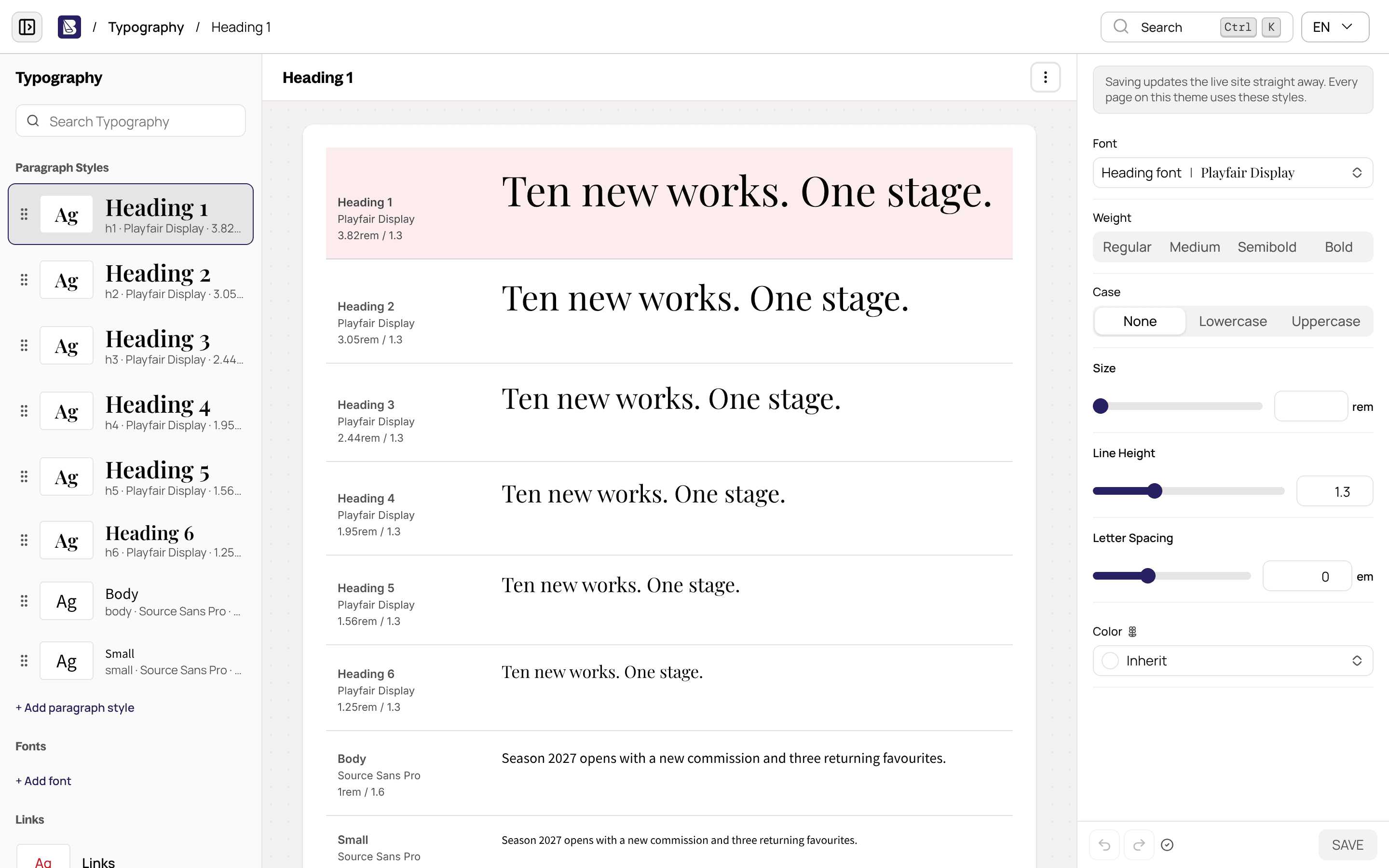
The Typography screen with a paragraph style open.
- 1Font — The font of the style.
- 2Paragraph Styles — The paragraph styles of the theme. Drag a style to change the order.
- 3Case — Shows the text as typed, in lowercase, or in uppercase.
- 4+ Add paragraph style — Adds a paragraph style.
- 5Fonts — The fonts that you uploaded.
- 6Save — Saves the change. The live site changes immediately.
Paragraph styles
A paragraph style is a named text style, for example a heading level or body text. Blocks let you choose a paragraph style for their text. When you change a style here, the text that uses it changes.
Select a style in the list to set:
- Font: Heading font, Body font, or a specific font. A style set to Heading font or Body font follows the base font of the theme.
- Weight: the weight of the text.
- Case: None, Lowercase, or Uppercase.
- Size: 0.6 to 8 rem.
- Line Height: 0.9 to 2.2.
- Letter Spacing: -0.1 to 0.2 em.
- Color: the text color.
Add a paragraph style
- Click + Add paragraph style below the Paragraph Styles group.
- Choose a starting point in the Preset picker: Blank paragraph style, Heading, Body copy, Caption, Eyebrow, or Pull quote.
- Enter a name.
- Change the values, then click Save.
Drag a style in the list to change the order.
Delete a paragraph style
Open the style, open the More actions menu, and click Delete. You cannot delete the Body and Small styles.
Base fonts
The theme has two base fonts:
- Heading Font: the font of headings.
- Body Font: the font of body text.
For a font that your site loads from a different service, enter its name in External Heading Font Family or External Body Font Family.
Upload a font
Add the font
Click + Add font below the Fonts group.
Name the font
Enter the name of the font family in the name box above the preview.
Confirm the license
Under Font Variants, click + Add Font Variant. In the Web font licence dialog, select I hold a web licence for this font, then click Choose file. You must hold a web license before you upload font files.
Add the variants
Add one variant for each weight and style. For each variant, choose the Font File, the Font Weight, and the Font Style (Normal or Italic). For a variable font, choose Variable (All weights) and set the Minimum Weight and Maximum Weight.
Save
Click Save. The font shows in the Fonts group with its number of variants.
Open an uploaded font to see Usage: the paragraph styles that use the font.
Links
Select the row in the Links group to set the look of links in text. Buttons keep their own look.
- Link Colour and Link Hover Colour: the colors of a link.
- Link Weight: Regular, Medium, Semibold, or Bold.
- Underline: Always, On Hover, or Never.
- Underline Offset: 0 to 8 px. Does not show when Underline is Never.
- Underline Thickness: 1 to 4 px. Does not show when Underline is Never.