Templates
Create and edit the templates that put shared blocks before and after the content of each kind of page.
A template sets the blocks that show before and after the content of one kind of page, for example each event page. A template belongs to a theme. Each page that uses a template changes when you change the template. See Blueprints vs templates.
Open Design → Templates. The list shows the templates of the theme. You can filter the list by content type. A Default badge marks the default template of a content type.
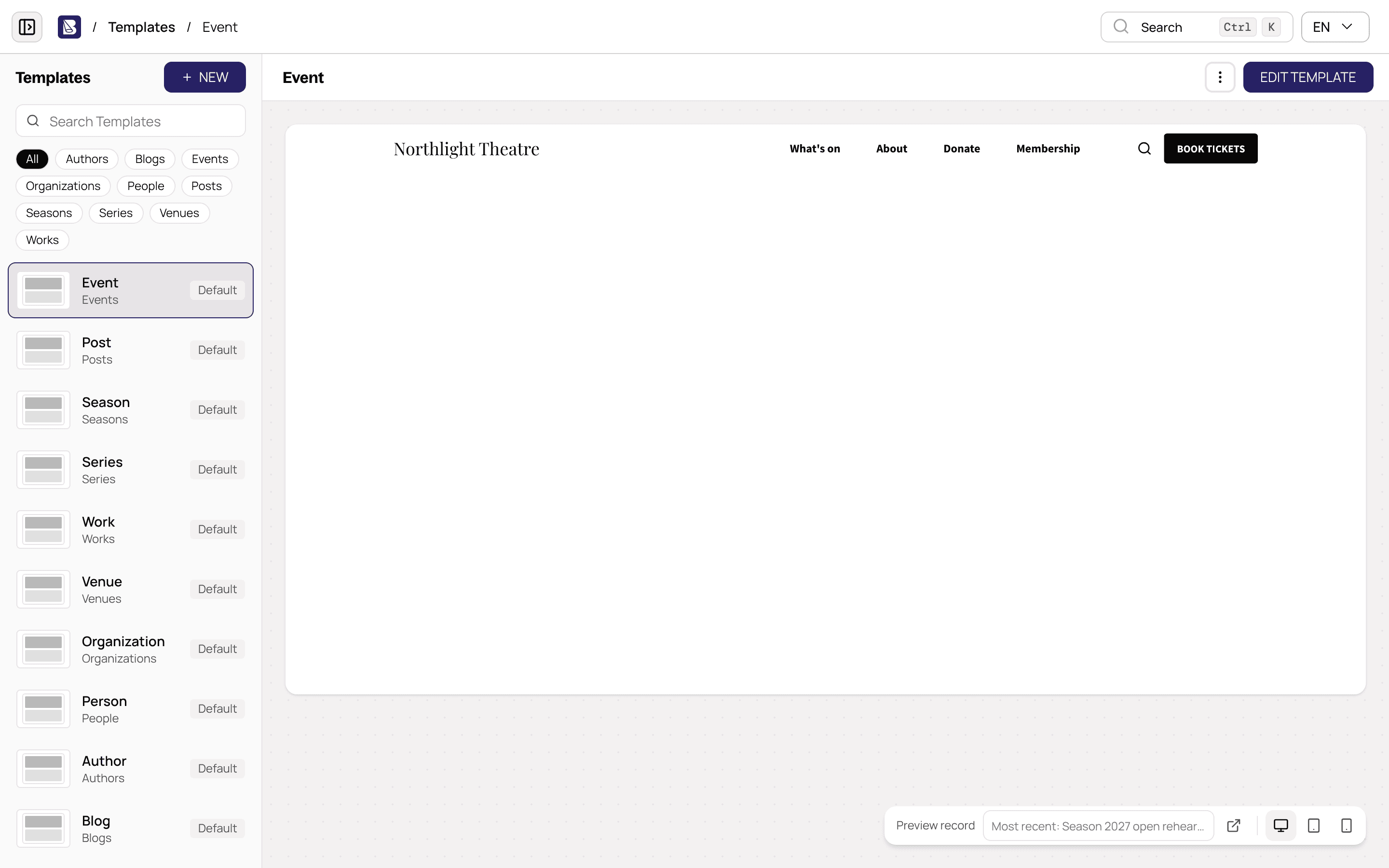
The Templates screen with the default event template selected.
- 1New — Creates a template and opens it in the editor.
- 2Default — Marks the default template of a content type.
- 3More actions — Has Versions, Duplicate, Edit layout, Discard changes, and Delete.
- 4Edit template — Opens the selected template in the editor.
- 5Preview record — Chooses the record that the preview shows.
Create a template
Click New
Click New. The template opens in the editor.
Choose a starting point
Click the starting point at the top left, which shows Blank template, and choose one:
- Blank template: no blocks.
- Event detail: a masthead, a page menu, and the event instances, for events.
- Article: a masthead with text, for posts.
- Profile: a masthead with a portrait, for people.
Name the template
Enter a name that tells editors which pages use the template.
Set the content type
On the Content tab, choose the Collection: Events, Posts, Pages, Blogs, People, Authors, Series, Seasons, Works, Venues, or Organizations. A template must have a content type.
Add the blocks
The structure on the left has two sections. Add blocks to Intro blocks to show them before the content of the page. Add blocks to Outro blocks to show them after the content. Click a block to see its settings on the right.
Save
Click Save.
To edit a template later, select it and click Edit template.
Blocks you can add
Intro blocks and Outro blocks accept these blocks: Masthead, Rich Text, Heading, Text, Group, Banner, Event Instances, Page Menu, Navigation Tree, Breadcrumbs, In-page Menu, and Button.
Outro blocks also accept Collection, Venue, and the Donation and Membership blocks.
A Masthead does not work in a template for Authors.
Set the layout and color scheme
On the Appearance tab:
- Layout: the header and footer for pages that use the template. Leave it empty to use the default layout. See Layouts.
- Color Scheme: the color scheme of the template.
To edit the layout of the template, open the More actions menu and click Edit layout.
Preview a template with a record
The preview shows the template with the content of a record, for example one event. By default, it uses the newest record of the content type. To choose a different record, use the Preview record picker below the preview. Choose Desktop, Tablet, or Mobile to change the preview width.
Set the default template
- Select the template.
- Open the More actions menu.
- Click Make default.
New pages of the content type then use this template. A content type can have one default template in a theme.
Templates from theme files
A template with a Theme file badge comes from the files of the theme. You can open it, but you cannot change or delete it in Basker.